AWS Control Tower Setup Guide
Introduction:
AWS Control Tower is a comprehensive service offered by Amazon Web Services (AWS) that facilitates the setup and management of a multi-account AWS environment. It provides centralized management capabilities, simplifying the implementation of security and compliance controls across your AWS accounts. By leveraging AWS Control Tower, organizations can achieve governance and scale in their cloud infrastructure deployments.
In this guide, we will walk you through the process of setting up AWS Control Tower, creating a landing zone, and configuring organizational units (OUs) to structure your AWS accounts effectively. Whether you are managing a single AWS account or a complex multi-account environment, AWS Control Tower streamlines the administrative tasks and ensures adherence to organizational policies.
Prerequisite
- AWS Organizations: Add an AWS account.
- Audit Account: This account is for your team of users that need access to the audit information made available by AWS Control Tower. You can also use this account as the access point for third-party tools that will perform programmatic auditing of your environment to help you audit for compliance purposes.
- Log Archive Account: This account is for your team of users that need access to all the logging information for all of your enrolled accounts within registered OUs in your landing zone. Create this account before setting up the landing zone.
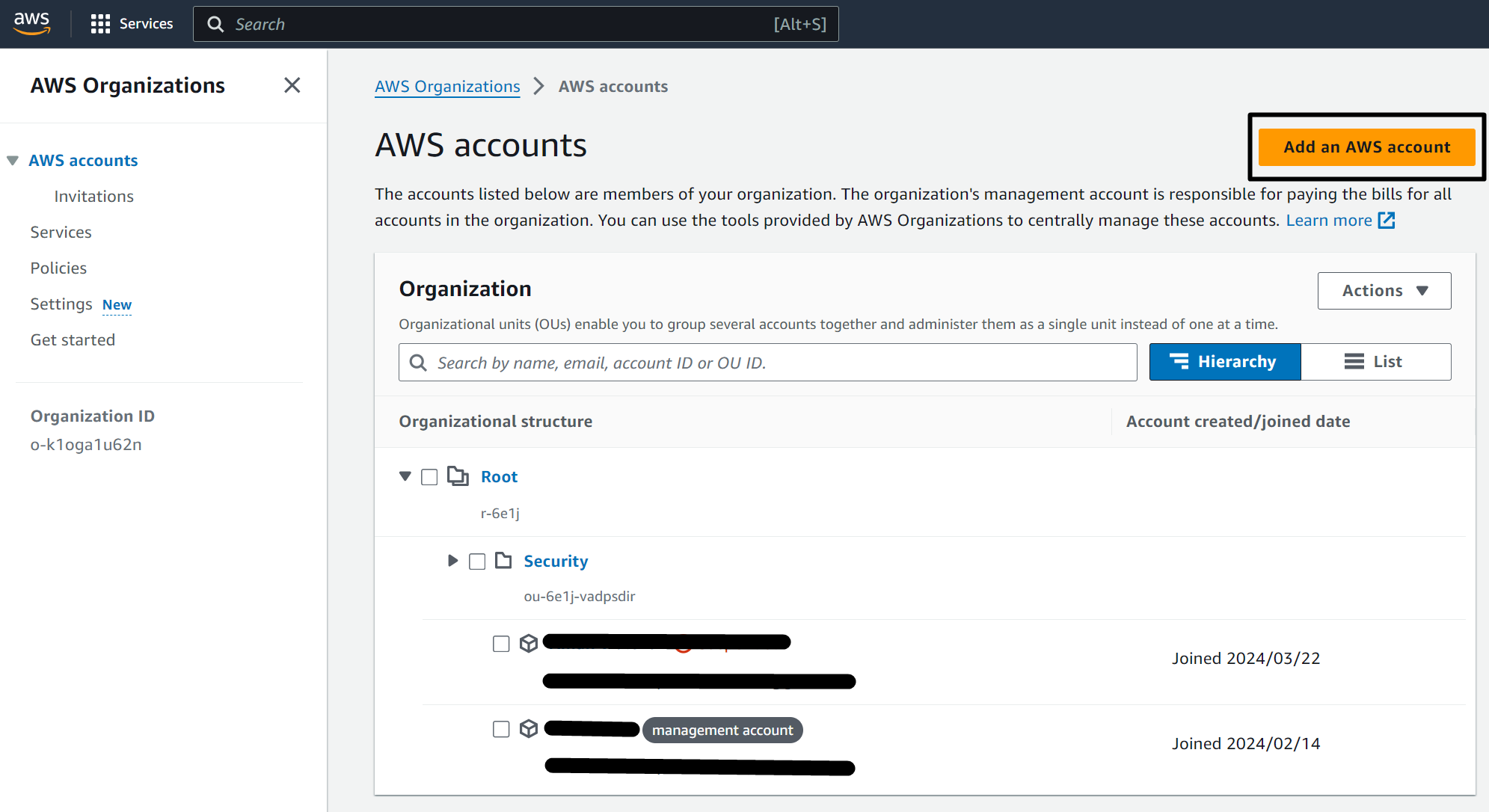
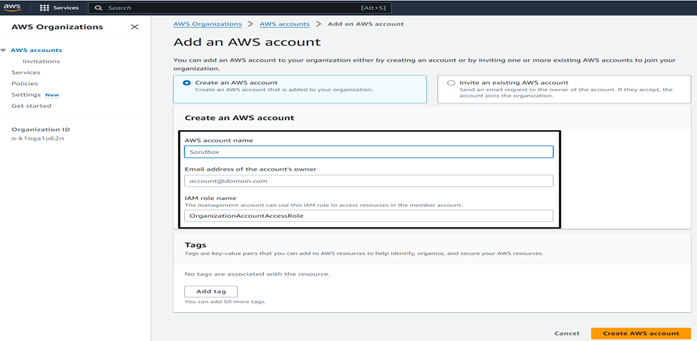
Steps to Setup Control Tower
- Create a Landing Zone:
- A landing zone in AWS Control Tower is like a starting point or foundation for setting up and managing your AWS environment. It is a pre-configured and secure AWS environment that includes multiple AWS accounts organized in a structured manner.
- Link: AWS Control Tower Console.
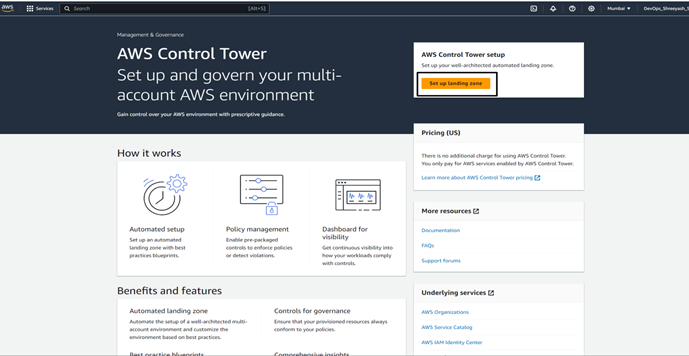
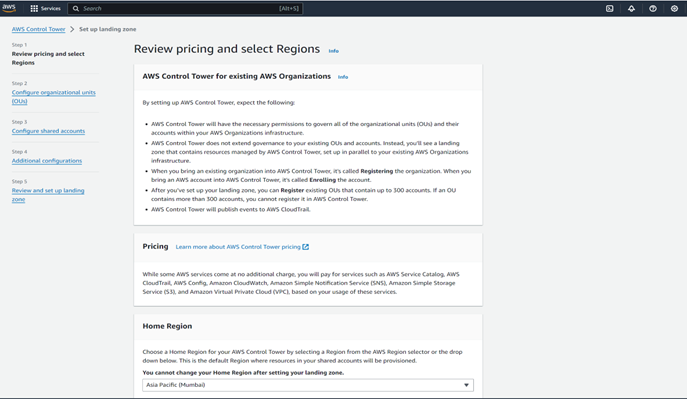
- Pricing of AWS Control Tower:
- There is no extra cost for using AWS Control Tower; you only pay for the services which are enabled by Control Tower.
-
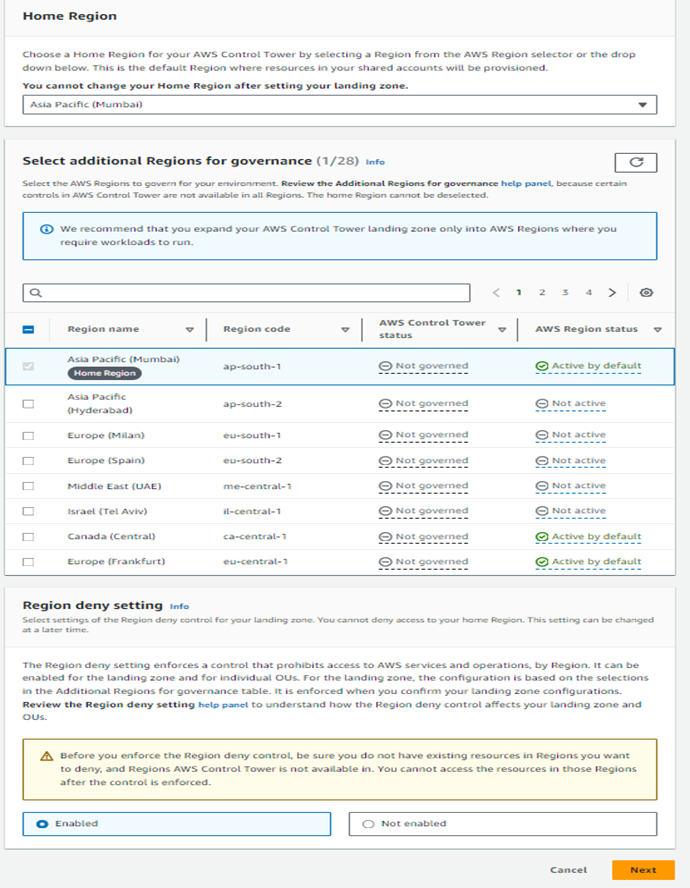
Select Regions:
- Select the regions which you want to add under the governance of your landing zone. Click Next.
-
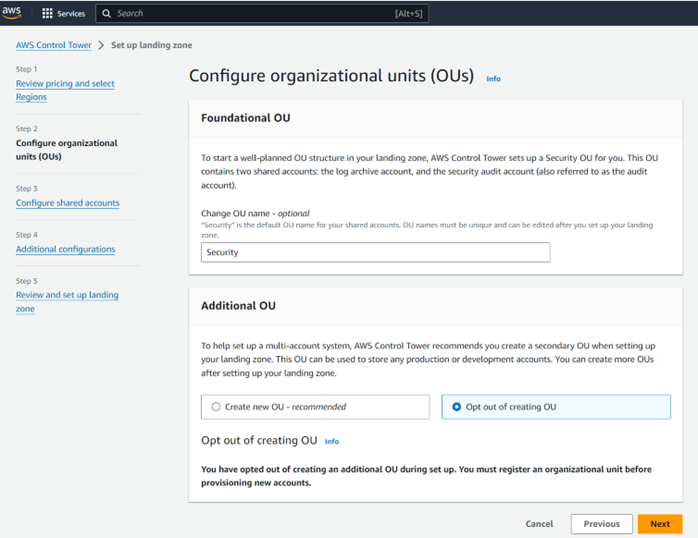
Configure Organizational Units (OUs):
- Name your organizational units (OUs). You can easily change the OU names or add more later on.
- AWS Control Tower will create a security OU in which it will create two shared AWS accounts: log-archive and audit. By creating a foundational OU, AWS Control Tower helps establish a structured hierarchy for your AWS accounts, enabling better governance and management. You can also add additional OUs in this landing zone.
- Setting up Shared Accounts:
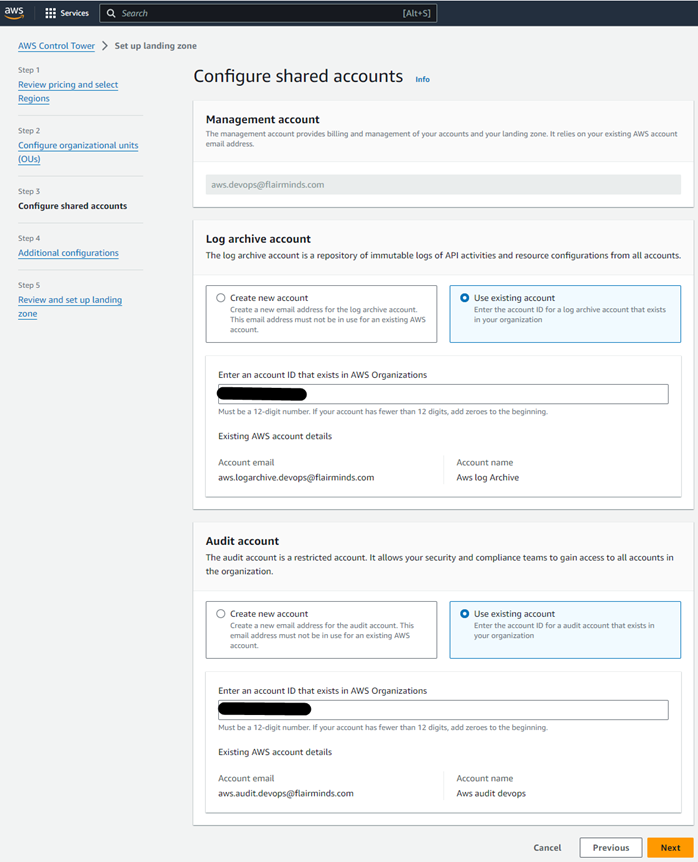
- After creating a foundational OU, set up the two shared accounts by adding account email and names for those accounts.
- It is not mandatory to create new accounts; you can also include existing accounts as log-archive and audit accounts.
- Additional Configurations:
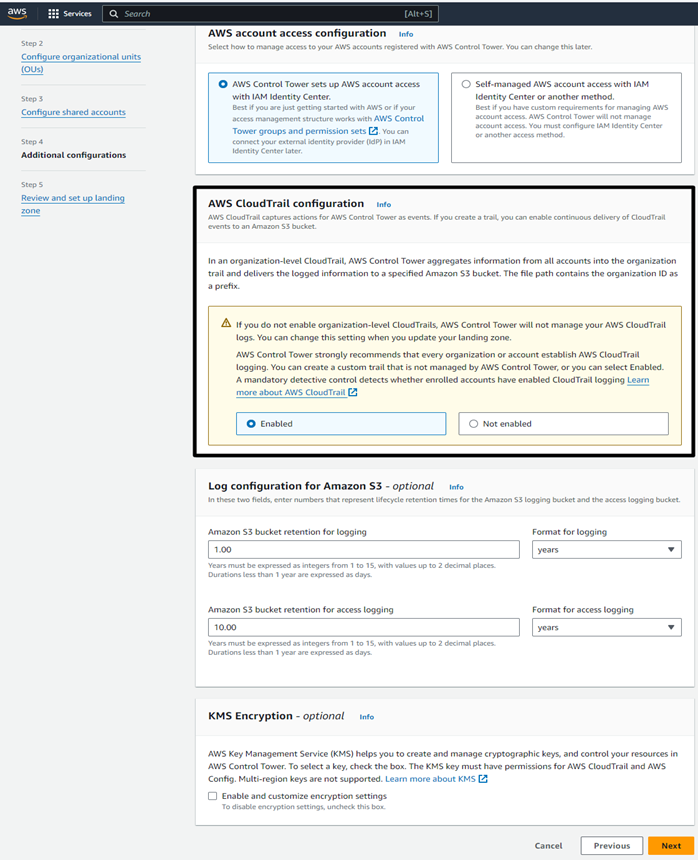
- In the final stage, you can add additional configurations like setting up IAM identity center to manage access of your team.
- You can enable or disable CloudTrail to monitor all account activities in the form of logs at a central S3 bucket.
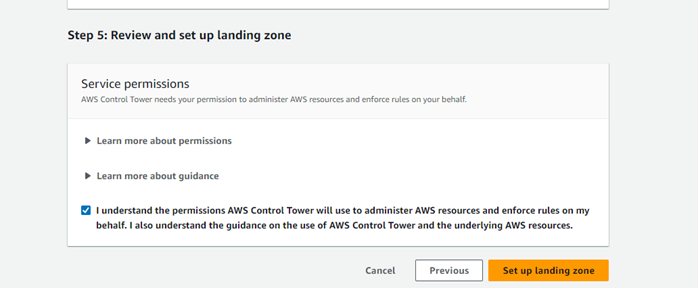
- Review and Setup Landing Zone:
- Review all your changes and click setup landing zone.
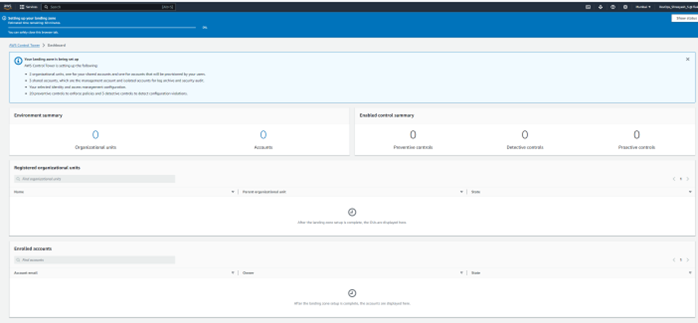
- Note:
- If user identity is already created, it will use the same.
Summary:
- You can create different OUs and add domain-specific AWS accounts in those OUs. It will help you organize your accounts for faster account access and better management.
- Other things you can do with Control Tower:
- Create a new AWS account.
- Add existing AWS account (accounts outside of the landing zone) to the landing zone.
- Remove any added AWS account from the landing zone.